
Denada Guide
How Denada works
Everything you need to know about Denada: what it is, how it works, the technology and structure behind it, and how to use it day to day.
01
Overview
Denada is an AI agent for marketing teams. You tell it what you need in plain language, and it builds the email. We call this Chat to Create. Denada introduced it in 2023, the first tool built this way.
Our goal: to empower and transform marketing teams, so they can create without bottlenecks, skip the tedious, time-consuming steps and focus on strategy and results.
Denada handles
- Creative
- Copy
- Coding
- Content
- Comments
- Versions
- Translations
- Templates
Denada creates
- Email marketing
- Landing pages
- Banners & ads
- In-app messages
- SMS & RCS
- Social proofs
- Direct mail
02
Video: Denada explained
A nine-minute walkthrough of everything on this page.
03
How Denada is organized
- Projects
- Libraries
- Images
- Docs
- Users
- AI training
- Team
- Denada is organized into Teams, one brand per Team. Each Team has its own projects, libraries, images, docs, users and AI training. Working on several brands? You’ll have a Team for each.
- Projects
- Denada is a work hub: you can see what your teammates are working on, or create in private. Each project is built from one of your libraries, so you can make whatever they’re set up for: emails, landing pages, banners, social mockups, in-app messages and more.
- Library
- The template system Denada builds with. Each Team can have several. More on libraries below.
- Images
- A state-of-the-art, built-in DAM. Denada recognizes what’s in every image and writes its description, tags and alt text automatically.
- Docs
- Add any document to give Denada knowledge. Docs is where you share information that leads to better results, or set up automations.
- Users
- Each user is a Manager or a Member. A separate setting controls whether they can access Libraries.
- AI training
- Denada is like a new employee. At setup, we train it on your company: your brand, products and services, audience segments, the types of emails you send, the ESP you use, dos and don’ts, and more. You can edit or add to this training at any time in Libraries and Docs.
04
What’s a library?
Libraries are at the center of how Denada works. A library is a template system, evolved for the AI era: your brand’s design system, packaged as reusable blocks that Denada and your team assemble into finished messages.
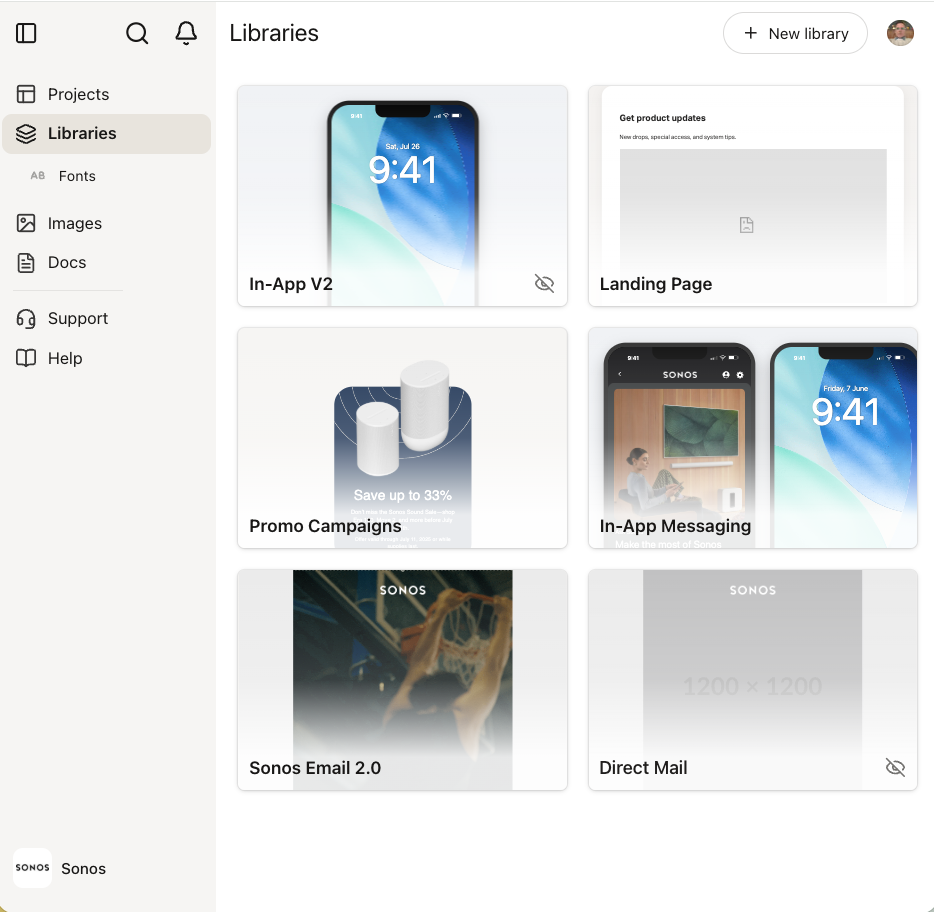
What’s inside
A library is a set of blocks: self-contained sections such as headers, heroes, product grids and footers. Most libraries have 10 to 30.
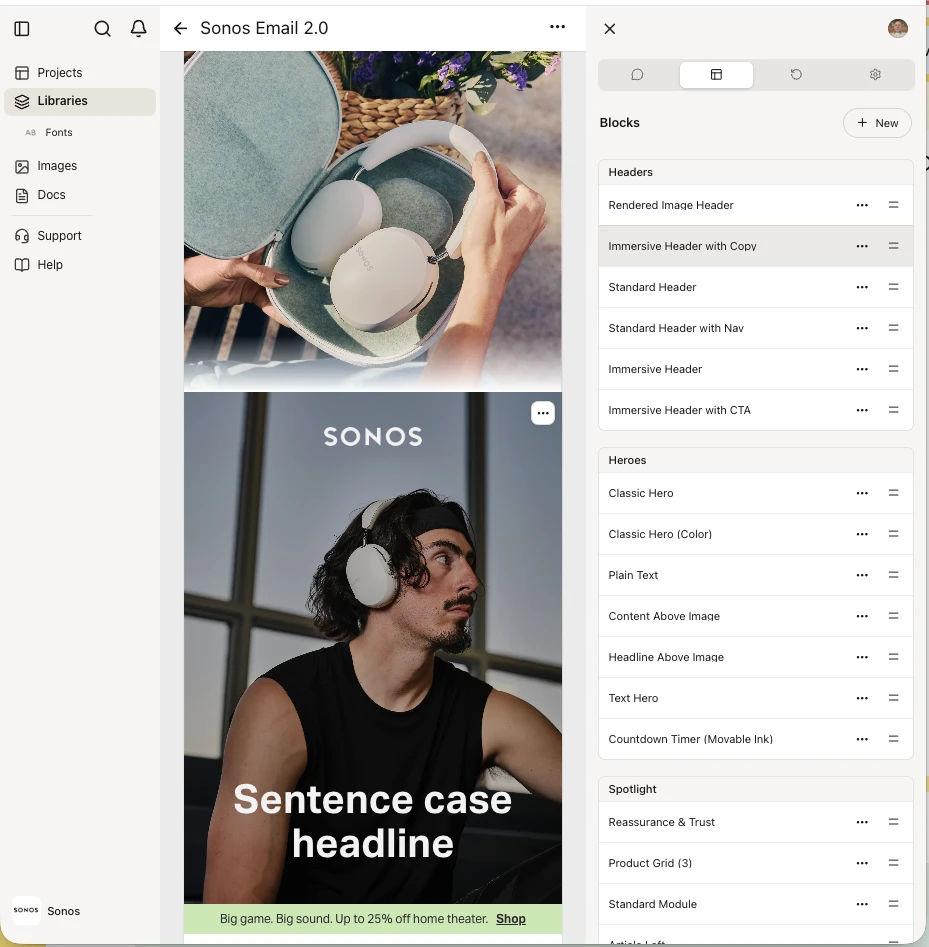
Each block contains:
- HTML code. Responsive and dark-mode ready, built once by a designer or developer.
- Denada content tags. They mark where content goes inside the HTML.
- AI instructions. A description of what the block looks like, and chat instructions that tell Denada when and how to use it. For example: “This block prefers lifestyle images featuring people.”
- Parameters. The fields that can change, such as the headline, image, font color or background tint.
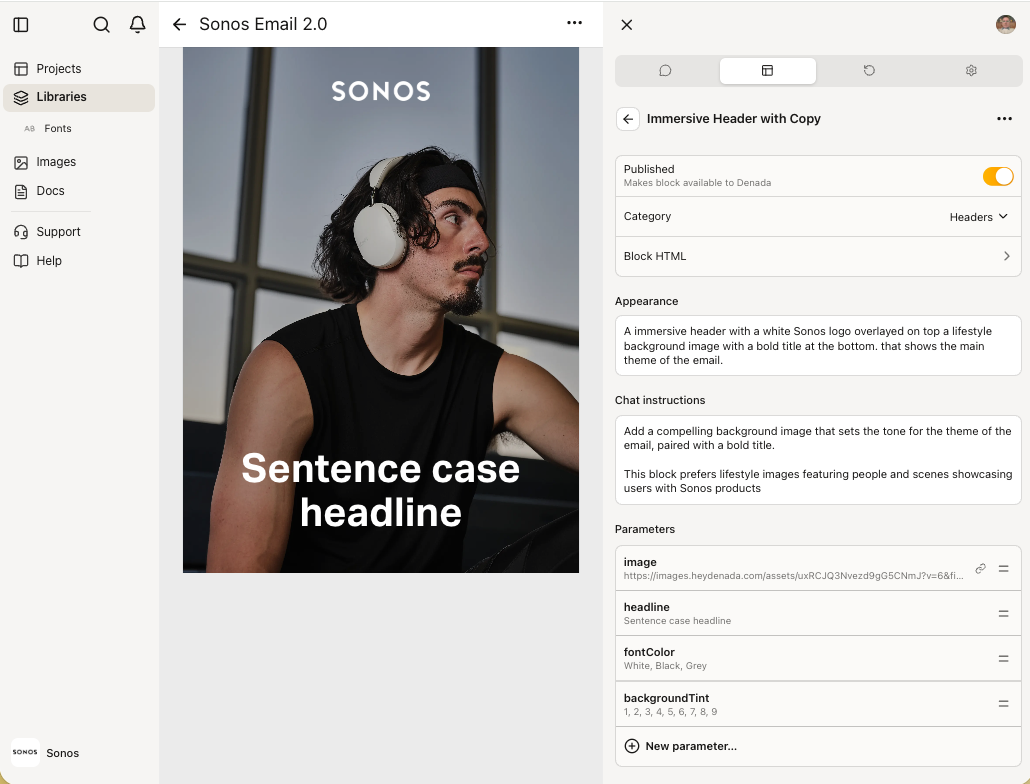
Every library also has a shell: the outer HTML that wraps the blocks and holds fonts, resets and shared theme settings like brand colors.
Parameters are the guardrails
You and Denada can only change what a block’s parameters allow. Everything else, including fonts, spacing, layout and code, stays locked. That’s why every message stays on brand, no matter who or what fills it in.
| Parameter | Controls |
|---|---|
| Text | Headlines, body copy, button labels |
| Image | Hero photos, product shots, logos |
| Color | Accent colors, backgrounds |
| Link | Button and product URLs |
| Show / hide | Optional pieces, like a disclaimer |
| Choice | A set of approved options, like alignment or column count |
| Spacing | Padding around a section |
| List | Repeating items, like product rows |
How Denada uses a library
You prompt
Chat, a brief, a PDF or a URL.
Denada reviews every available block
It reads each published block’s description and instructions against your prompt.
It picks the best blocks and puts them in order
That’s the structure of your message.
It fills in the parameters
Copy, images and links, inside the guardrails.
Any HTML can be a library
- Emails
- Landing pages
- Banner ads
- Social mockups
- In-app messages
- Direct mail
If it can be built in HTML, it can be a library.
Good to know
- Published. Libraries and individual blocks each have a Published switch. Denada only builds with what’s published.
- Versions. Every project keeps the library version it was built with, so changing a library never silently changes past work.
- Who builds them. The Denada team builds your first libraries during setup, then trains your team to edit, duplicate and build new ones on your own.
05
The interface
We keep the interface simple. There are three areas: the Left Panel, the Right Panel and the Share button.
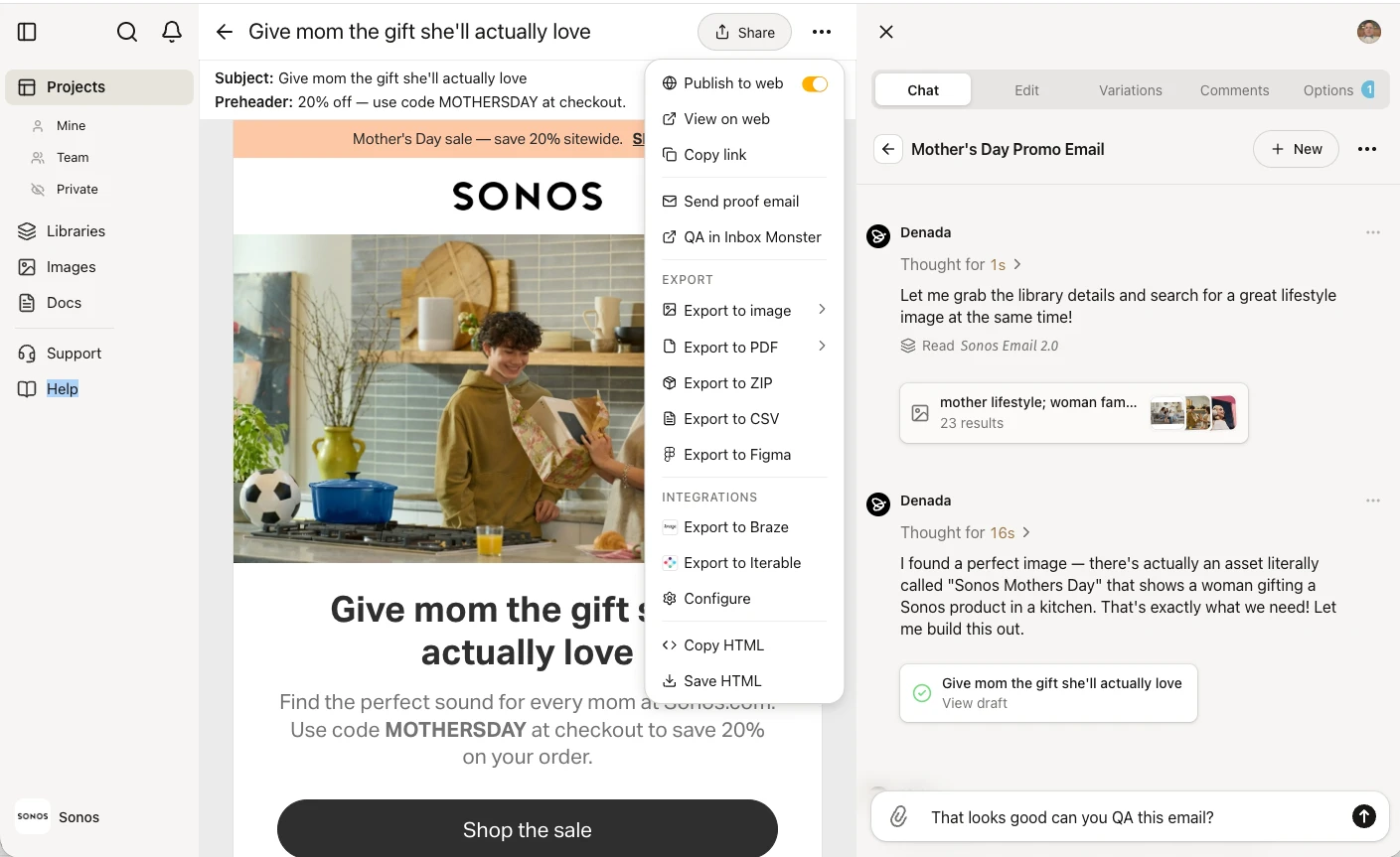 ABC
ABC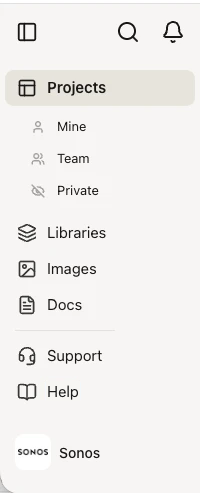
ALeft Panel
Manage your projects and your Team.
- Team switcher (lower left). Move between Teams or brands.
- Projects. Your work hub. See your projects and your teammates’.
- Libraries. The smart templates Denada builds with.
- Images. A built-in image library. Denada looks at every image and writes a description, alt text and keywords; that’s how it picks images for your layouts. Connect your DAM and its metadata comes along too.
- Docs. Storage for anything, in folders. Refer to any doc in your chats with Denada.
- The Denada Masterfile lives here: one document that Denada reads every time you work with it. Put your rules and key information in it.
- Support. The one part of Denada that isn’t AI. Real people, with a goal of answering within 10 minutes.
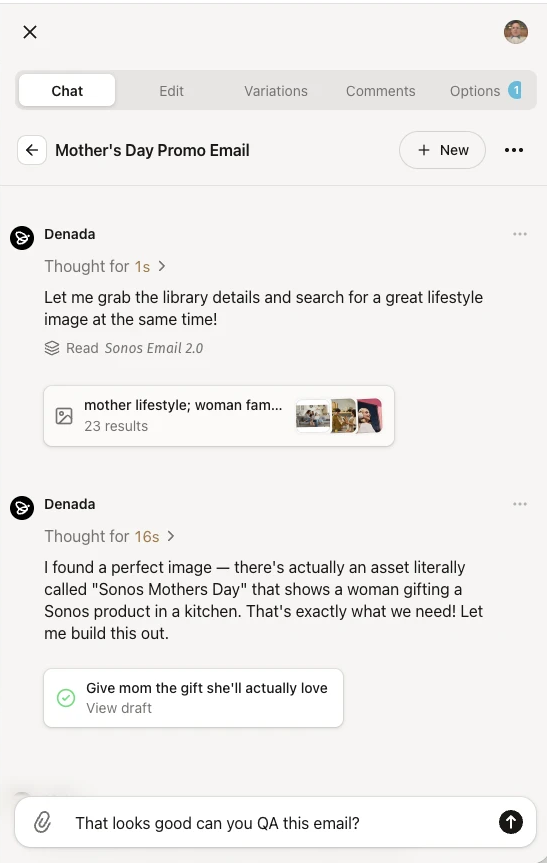
BRight Panel
Work on the project that’s open.
- Chat. Tell Denada what to do.
- Edit. Make changes by hand. Click any block to see what’s in it, add new blocks or reorder them.
- Variations. Turn one layout into many. Describe the versions you want; Denada keeps the original and builds the rest by changing images, words and blocks.
- Comments. Tag teammates, discuss the layout and set statuses for your workflow tools.
- Options. Subject line, preheader, version history and library.
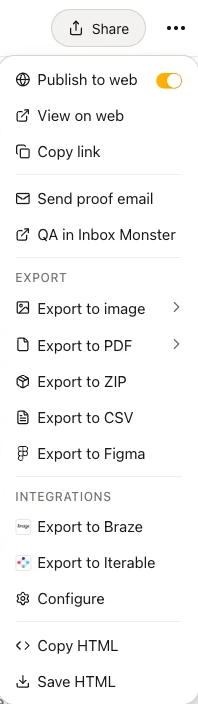
CShare button
Get your project out into the world.
- Publish to web. A public URL where people outside your team can leave revisions.
- Send a proof email.
- QA. Test in Inbox Monster, Litmus or Email on Acid.
- Export. A wide range of formats.
- Integrations. Send straight to your ESP. Set it up once and it stays in the menu.
- Copy or save the HTML.
06
Chat to Create:
What Denada does when you prompt
Every project starts with you telling Denada what to make. Here’s what happens next.
You give Denada a starting point
Use whichever input fits:
- Chat. Type, or use the microphone to talk.
- A brief. Upload any brief, in any format. About 65% of Denada users start here.
- A PDF or screenshots. From Figma or anywhere else.
- A URL. Denada visits the page, reads and summarizes it, and can bring in its images.
Denada picks blocks from your library
It chooses the template blocks that suit your request.
Blocks are picked from your library and assembled. Denada finds your images
It searches your image library for pictures that match the prompt.
Matching images move from your image library into the layout. Denada writes the copy
Headlines, body and buttons, written to your brand training.
Headlines, body copy and buttons are written in. You get a first draft in minutes
A fully coded, responsive, dark-mode-ready email, built in your template with your images and on-brand copy.
A complete, coded first draft, in under a minute.
07
Step by step
Before you start: setup
Denada isn’t off-the-shelf software. It’s an agentic workflow trained on the way your team works, so we set it up with you first. It starts with a use case: what do you want to make? Then share:
- Examples of the emails you send
- Your brand guidelines and training
- A few sample briefs
- The ESPs and other tools you want to connect
Chat to create your first draft
- Describe what you want.
- Or upload a brief.
- Or give Denada one or more URLs and ask for an email based on the page. It can bring in that page’s images too.
Refine it
Denada makes the first draft in minutes. It won’t be perfect every time; that’s where you come in, as the human in the loop. Keep prompting, or open the editor to:
- Change images, words or links
- Remix images or create new ones
Make variations
One prompt creates:
- Versions. Up to 50 from a single prompt, more if you need them.
- Translations. 98 languages supported.
Comment and approve
@mention anyone to bring them into the thread.
- Internal. Discuss with your team first.
- External. Share the public URL with people outside your organization. Their comments are tagged Public so you always know where feedback came from.
Export
- Straight to your ESP
- Or as a public URL, proof email, PDF, PNG, HTML or ZIP
08
Integrations
Denada connects to your entire marketing stack, and we configure it at setup to fit the way your team works.

ESPs
- Salesforce
- Braze
- Iterable
- Adobe Campaign
- Marketo
- Cordial
- Eloqua
- HubSpot
- Klaviyo
- Zeta
- SendGrid
- Mailchimp
Messaging
- Microsoft Teams
- Slack
Design
- Figma
SSO providers
- Google Workspace
- Okta
- SAML
- Microsoft Azure
- Duo
DAMs
- Bynder
- Adobe Experience Manager
- Brandfolder
- Webdam
- Acquia
- Catsy
Workflow tools
- Asana
- Workfront
- Wrike
- monday.com
- ClickUp
- Trello
- Smartsheet
Live content
- Movable Ink
- NiftyImages
- Liveclicker
- Denada Live Blocks free
AI agents (MCP)
- Claude Code
- OpenAI Codex
- Cursor
- GitHub Copilot
Don’t see a tool you use? If it has an API, we can build the connection during setup. See how ESP export works
09
QA: Check every email before you send
The last step is the simplest. Tell Denada “QA this email.”
- 143 built-in checks. Denada’s default QA covers copy, content, code, links and ESP-specific tags.
- Your own checklist, too. Add a custom QA checklist to Docs. Denada runs its built-in checks first, then reviews the email against your list.
- Fixes included. When Denada finds a problem, it can make the fix for you.
The result: your email goes into your ESP tested, checked against your standards, and ready to set up and launch.
Why it matters: manual QA misses things. Denada checks every email the same way, every time. One team estimates Denada’s QA alone saves them 16 hours a week.
10
Pricing
Denada has two costs: a one-time setup fee, then a monthly subscription.
- Setup
- $1,650–$5,775, one time. Covers building your first libraries and training Denada on your brand.
- Subscription
- Based on your estimated monthly output and number of users.
Base
$199/month
Core
$499/month
Pro
$799/month
Enterprise
Custom
Estimated for your instance
Risk-free proof-of-concept trial
- Sign up. We get you set up in 2–3 weeks.
- Use Denada for three months.
- Cancel any time in the first 90 days for a full refund of your monthly subscription.
The setup fee is non-refundable.
Tell us about your program: what you want to make, how many per month, and how many users.
11
Comparison: The old way vs. the new way
The biggest change in email production in 30 years is the instant first draft.
Before
- Brief
- Copy
- Design
- Review
- Approval
- Coding
- ESP setup
Every step waits on the one before it.
Now up to 70% faster
- Brief
- First draft in minutes
- Edit, or invite your team to review
- Approval
- Export to your ESP in one click
Traditional email production
Agentic email production

Timeline: 2–6 weeks
- Multiple handoffs
- Slow revisions
- Expensive localization
- Limited testing
- Team bottlenecks
Timeline: hours or days
- Instant creation
- Rapid iteration
- Built-in localization
- More testing
- Marketers create directly

It’s Time to Transform
No more excuses, no more delays. Cut your production time and costs in half, risk-free with our 90-day proof-of-concept trial. Make the move today.
50–70% shorter timelines
3–7x more output
2–3 weeks to set up
Go from a slow-moving caterpillar to a light, agile butterfly. Book a demo, and in 2–3 weeks your marketing creative process can be transformed.
Book a demo